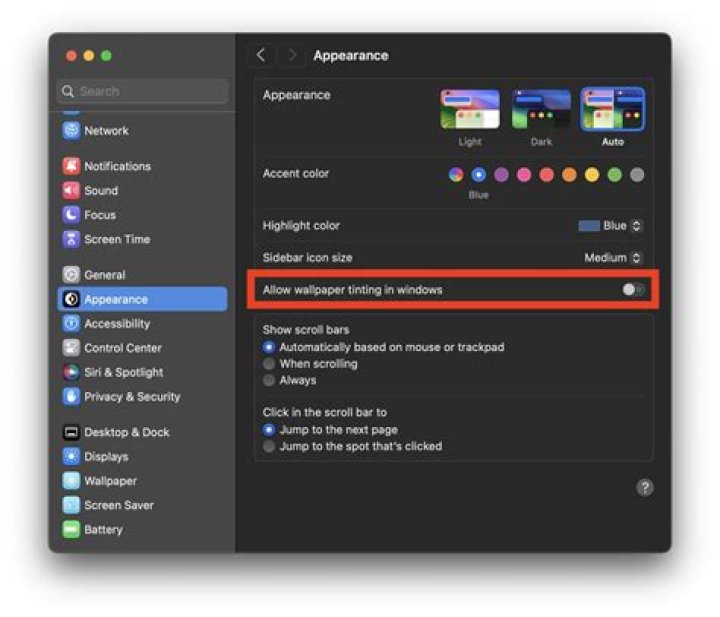
I don't want my users to change the system wallpaper. How do I the lock the wallpaper down?
Update
Users are changing wallpaper by right clicking the picture and choosing set as wallpaper. How to restrict this behaviour?
Is it possible to remove Backgrounds Tab from Appearance Preferences? If yes how?
4 Answers
There are two ways that I know of:
1. As root run gconf-editor: gksudo gconf-editor. In the left pane find / desktop / gnome / background. On the right panel, find picture_filename, right click on it and select Set as Mandatory.
2. Another way is to simply prevent normal users from executing the wallpaper changer by running (as root): chmod 744 /usr/bin/gnome-appearance-properties
The command line version of Mark's answer would be:
sudo gconftool-2 --direct --config-source xml:readwrite:/etc/gconf/gconf.xml.mandatory --type string --set /desktop/gnome/background/picture_filename "/usr/share/backgrounds/Tri_Narwhal_by_momez.jpg" eog (eye-of-gnome)
11.04 and previous versions of ubuntu
When you mentioned that you can right-click an image and set as wallpaper, this answer assumes you meant - open the jpeg image into eog, right-click and choose "set as desktop background".
With this answer, you can remove this option:
With this assumption in mind, you can remove the menu-option AND right-click option by either editing the source directly (if you want to distribute a package) or on a per-client modify the GTK window data.
solution 1 - edit GTK window data
First backup the GTK window data:
sudo cp /usr/share/eog/eog-ui.xml ~/ gksudo gedit /usr/share/eog/eog-ui.xml Now search for "wallpaper" - delete each line that contains this keyword and save.
To revert the changes:
sudo cp ~/eog-ui.xml /usr/share/eog solution 2 - distribute deb package
This can be done with this recipe:
apt-get source eog sudo apt-get build-dep eog sudo apt-get install devscripts If it asks to configure your mail - select no configuration
cd eog-2*/data gedit eog-ui.xml Now search for "wallpaper" - delete each line that contains this keyword.
Save.
cd .. gedit debian/changelog add +ppakarthick to the first line so that it reads something like:
eog (2.32.1-0ubuntu2+ppakarthick) natty; urgency=low
debuild -us -uc cd .. sudo dpkg -i eog_*.deb Note - there is only one deb package to install - either 32bit or 64bit depending upon the ubuntu architecture you have installed. The other deb's produce is a debug package and a development package, both of which you can ignore.
To revert the changes:
sudo apt-get purge eog sudo apt-get install eog This will remove the complete eog package. Then, the second command will re-download from the repositories, the current eog package.
Note - it may want to remove the meta package ubuntu-desktop. The only affect this has is if you intend to upgrade to Natty. If you want to upgrade, simply install ubuntu-desktop before the upgrade.
Gnome-Control-Center background tab
The GTK Window data for this tab is in the file /usr/share/gnome-control-center/ui/appearance.ui but I have not found a convenient place in this file that you can hide the background tab itself.
With a source-code change - you can get the background tab and its buttons to both not display wallpaper and do nothing when the buttons are clicked.
This solution is very similar to solution 2 above.
apt-get source gnome-control-center sudo apt-get build-dep gnome-control-center sudo apt-get install devscripts If it asks to configure your mail - select no configuration
cd gnome*/capplets/appearance gedit appearance-desktop.c Now look for the following function and add return; as shown:
void desktop_init (AppearanceData *data, const gchar **uris) { GtkWidget *add_button, *w; GtkCellRenderer *cr; char *url; data->wp_update_gconf = TRUE; data->wp_uris = NULL; return; Save.
cd ../.. gedit debian/changelog add +ppakarthick to the first line so that it reads something like:
gnome-control-center (1:2.30.1-0ubuntu2+ppakarthick) lucid-proposed; urgency=low
debuild -us -uc cd .. sudo dpkg -i capplets*.deb sudo dpkg -i libgnome-window-settings1*.deb sudo dpkg -i gnome-control-center_*.deb To revert the changes:
sudo apt-get purge gnome-control-center libgnome-window-settings1 capplets-data sudo apt-get install ubuntu_desktop This will remove the complete gnome-control-center package and a few other packages. Then, the second command will re-download from the repositories, all the packages previously removed.
2I found a way to easily set the wallpaper (desktop background) at each login. Create a new login program in "Startup Applications" with the following command.
gsettings set org.gnome.desktop.background picture-uri "file:///usr/share/backgrounds/edubuntu_default.png" Of course you can specify any image simply by replacing "edubuntu_default.png" with your image.